




5.1. Adding load offers through the Add Load form
To add a load offer, go to the Loads section, click Add loads
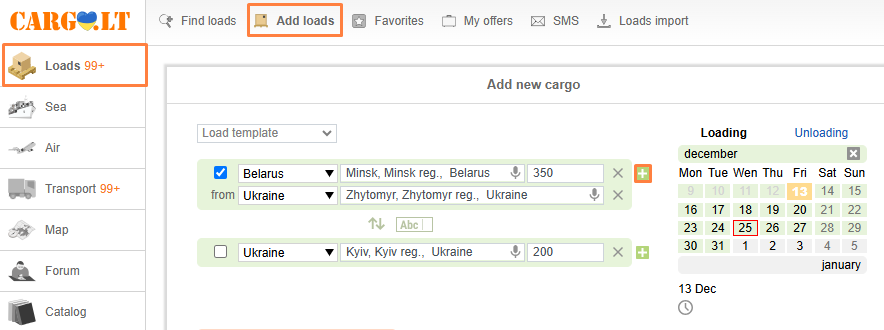
and fill in the following fields:
1. Point of loading and unloading.
Indicate the loading point in the line From, indicate the unloading point in the line To.
_en.png)
If you have a consolidated load, add an additional loading/unloading point by clicking on icon Add.
Please note:
Change places - Swap loading/unloading function.
Abc - Mode switch for adding loading/unloading points (automatic, manual):
• Manual mode. It is necessary to select the country, region, city from the drop-down lists in turn;
• Automatic mode. Select a country from the drop-down list, and enter the city / region / zip code in the next field, or just enter the city, and the system will automatically indicate the country. You can enter the city in Cyrillic or Latin.
Check the country box. If you check the country box to the left of the loading/unloading point,
_en.png)
matching will be done only within selected countries. If the box is not checked, you will see matches on offers within a radius regardless of the borders of the specified countries.
2. Date of loading/unloading. Date of loading/unloading date can be indicated 4 weeks in advance; offer validity period cannot be more than 3 business days (excluding weekends).
_en.png)
To change the date, click Delete (in the upper right corner of the calendar).
When specifying the 1st day of loading/unloading, you can also specify the time by clicking on Time of loading/unloading icon Clock.
Please note:
Holidays. If there are holidays in the calendar in the country of loading/unloading, they are highlighted with a red frame.
_en.png)
3. Cargo type. The drop-down menu displays types of cargoes.
_en.png)
When you select a specific type of cargo, some parameters such as temperature may be set up automatically. You can edit them manually, if necessary.
Select the cargo weight with the slider or type it manually. If you need to provide additional cargo or truck parameters, press More options… .
Please note:
When you select the cargo type Means of transport, you need to provide the specific set of parameters for this cargo type.
_en.png)
In specific: type of car, number of vehicle units, make, model, and condition. By pressing the Add icon, you can add several transport vehicles.
4. Additional information. If you need to provide additional load parameters, type them here. You cannot use this to specify your phone number or any third person’s phone number.
_en.png)
Please note:
Contact person.
You are specified as the person to contact for this load automatically. If you edit this part and decide to specify another employee of your company (from the drop-down menu), only he or she will be able to see, edit, or delete this offer.
_en.png)
5. Notification of relevant offers. If you wish to receive information about a suitable offer, select the notification type either Email or SMS. SMS notifications are a paid service.
_en.png)
6. Type of payment. Click More options…. Select the type of payment from the available options: during unloading, after delivery or advance payment. Specify the price.
_en.png)
Please note:
Price request. Tick this box to request carrier prices if there is no load available at the moment.
_en.png)
7. Priority offer. To have your offer displayed at the top of the table for the whole period of its relevance and highlight it for other users, select Priority offer. This is a paid service.
_en.png)
Reset button: All the information you entered will be deleted.
Add button: The offer will be added to the system.
You can see all added offers in My offers section.


