




4.2.2. Using a standard filter
Go to the Trucks section, click on Find trucks and fill in the necessary parameters in the search form, then press Find.
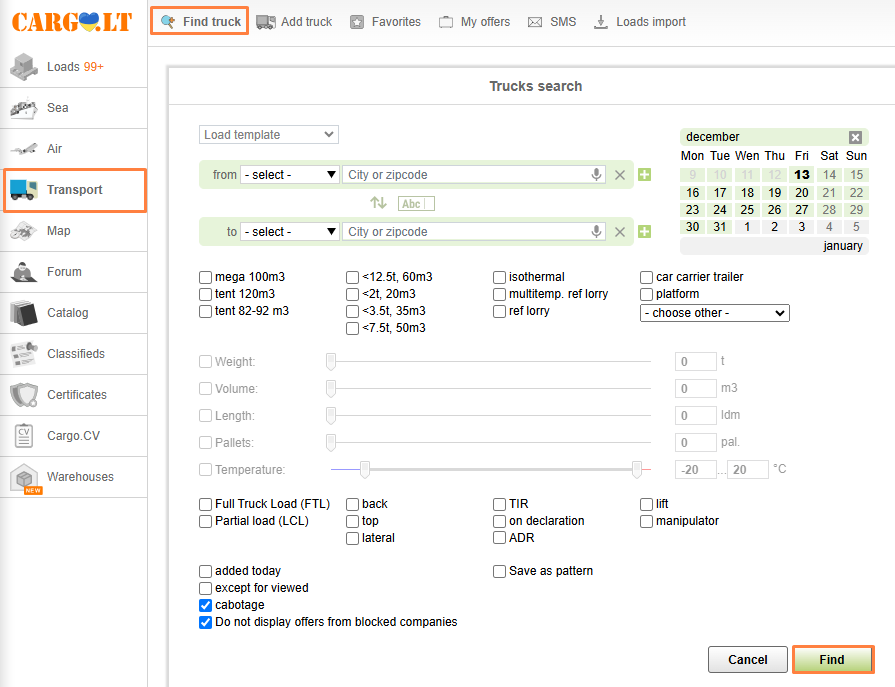
The search results will be displayed in a separate tab in the form of a chart, where you can sort the data in alphabetical order (loading and unloading points, customers) as well as by date.
_en.png)
If no offers are found, try expanding the search criteria by changing them in the filter (search radius, weight, volume, trailer type, etc.).
To rename a tab, click on it and type the name, then press Enter.
_en.png)
To find new offers while using different parameters, click on New search, fill in the data in the search form and press Find. A list of new offers will be displayed in the tab.
Created tabs will be preserved even if you went to a different website section or logged out.
To change the search parameters, press the Pencil icon, edit the parameters and press Find.
If you do not use the configured filter for two weeks, it will be automatically deleted from the filter table.
Please note:
Mini filter. To select only those offers matching your type of truck from the list in the open tab, set the necessary parameters in the mini filter.
_en.png)
_en.png)
Tick the country. If you specified the search radius, you can also tick the country box to the left of the loading and unloading point.
_en.png)
Then the only offers you will receive are from the selected country. If you did not tick the country, you will see offers within the specified radius from the loading and unloading point regardless of the country borders.
Template. To save time when you fill in the search parameters, you can create a template. To do this, when you do a search, tick Save as template, specify its name and click on Find.
_en.png)
This template will be accessible in the drop-down menu Upload template.
_en.png)
Selecting the saved template, you can also edit it if necessary.
_en.png)
You searched. The YOU SEARCHED drop-down list displays your latest 10 searches. To repeat an older search using a filter from your history, press the icon Change filter for search, edit the search parameters, if necessary, and then press Find.
_en.png)
New offers in the tab. New offers that match your search parameters will be automatically loaded into the list inside the tab. The number of new unread offers will be displayed numerically on the tab.
_en.png)
If you have many tabs, the tab color will turn orange when there are new offers available.
_en.png)
If you are at the top of the table, new offers will be automatically loaded into the table and highlighted in green.
_en.png)
If you are in the middle of the table, the information about the number of new offers will be displayed in the pop-up window. To load new offers, click the link Show.
_en.png)
Managing the offer list.
_en.png)
To receive a sound notification of a new incoming offer, press Sound control icon on the respective tab.
You can suspend tab monitoring. The search for active offers will be available, but the information of new incoming offers will not appear. To suspend tab updates, press the Stop filter monitoring icon Pause.
You can restore monitoring of new offers on the tab any time by pressing Play.
If the search by any specific criteria is not relevant, you can delete the tab by pressing the filter monitoring icon Delete.


