



7.1.2. Using a standard filter
Enter the Air loads section, click on the Using a standard filter Find loads button, afterwards click Find.
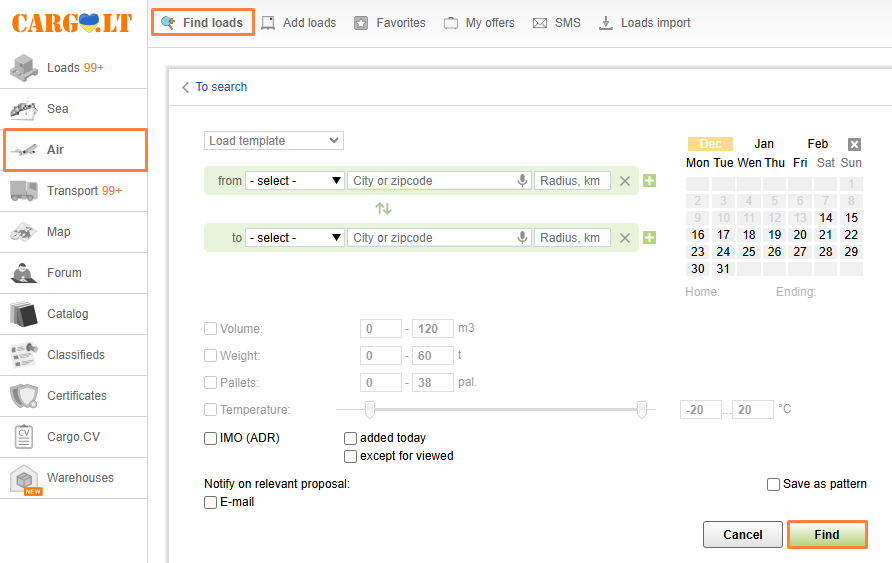
Choose the continent, and then choose your country from the dropdown list, or you could enter a city name or Zip-code.
_en.png)
The results will be sorted in tabs which you could organize in alphabetical order (loading or unloading points, type of load, company), and also via date.
_en.png)
If no results are found you can extend search parameters, by changing search criteria in the filter (radius, weight/volume, type of shipment etc..).
To rename a tab, click on the tab and type the desired name, then click Enter.
_en.png)
To find offers with different parameters, click on New search and in the new search form fill in the new details and then click Search. The list of offers will display itself in a tab.
Created tabs will save themselves, even if you leave the website or click into a different tab.
To change search parameters, click on the Pencil icon, insert the necessary parameters and click Search.
_en.png)
If you do not use a created filter for 2 weeks, it will automatically delete itself.
Good to know:
Radius. Indicate the radius (km) from the loading / unloading point, with the distance you are willing to travel in which you are willing to load/unload your load. This will in effect increase the amount of possible offers.
Checkmark near the country. If you have indicated the desired load radius you may click the checkmark near the country.
_en.png)
The highlighted offers will only be shown from the selected country. If the checkmark is not clicked then the highlighted offers will be shown anywhere in that radius regardless of country borders.
Template. To save time filing search parameters,you may create a template. To do this, in the search section click on Save as template, Insert a name and click Search.
_en.png)
The following template will be saved and can be found in the Upload template.
_en.png)
By choosing the selected template you may delete or edit it at any given moment.
_en.png)
Destination subscription. After choosing your loading and unloading zone you may choose the method of receiving notifications regarding the chosen offers, either via SMS or E-mail.
_en.png)
You searched. In the You searched drop down list you can find your last 10 searches. To repeat the search by filter from the history, click on the Change filter to search icon, if required you may change search parameters then click Search.
_en.png)
New offers in tab. New offers that fit your parameters will be automatically added to your tab. Amount of new unseen offers will be displayed by a number on your tab.
_en.png)
If there are too many tabs created, any new offers will be highlighted by a colored border.
_en.png)
If you are located on the top part of the tab, the new offers will appear in live and will also be highlighted in green.
_en.png)
If you are located towards the middle of the tab, there will be a notification displaying any new offers. To load the new offers click on the Show icon.
_en.png)
Controlling the offer list.
_en.png)
To receive a sound notification click on the volume control icon in the corresponding tab.
You can stop actively searching for new loads on your tab. Old offers that were found will be available to see but no new offers will be updated into the tab. To pause updating the tab click on the Pause icon.
At any moment in time you may continue updating the tab by clicking the Resume icon.
If for some reason your search is no longer relevant you may click on the Remove tab icon at any moment in time.


